
Google Pay™
Accept Google Pay payments through dLocal by collecting a Google Pay token and submitting it in a standard card payment request.
Accept Google Pay payments through dLocal by collecting the Google Pay token in your app or website and submitting it in a standard card payment request.
Overview
Google Pay allows customers to pay with any credit or debit card saved to their Google Account. Since Google devices are widely used in the countries where dLocal operates, supporting Google Pay in your app can help simplify the checkout process and increase conversions.
To view the list of countries where Google Pay is supported, please see Countries or regions where you can make payments with Google.
For details on the card networks supported by dLocal, please see the Payment Methods section.
Payment flow
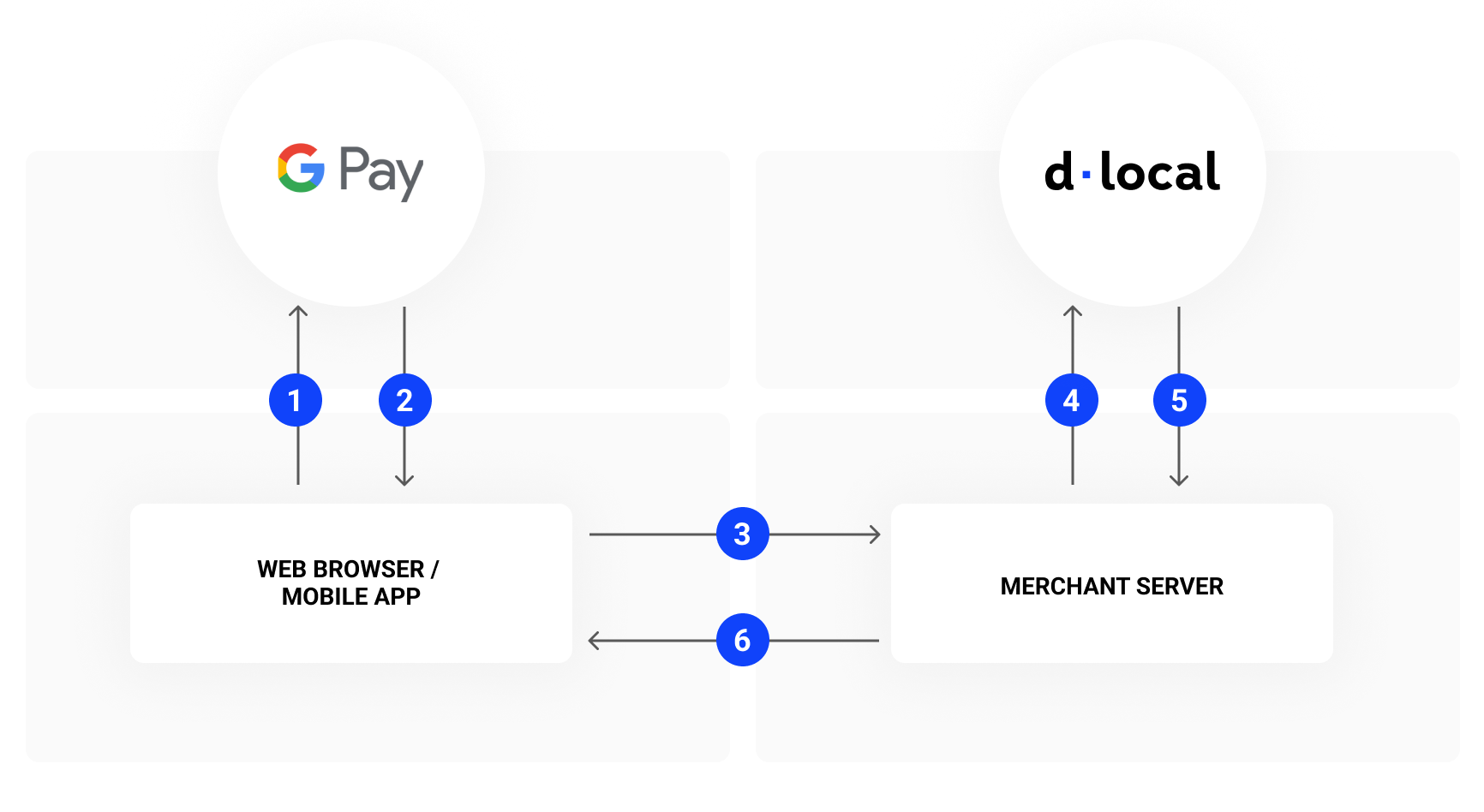
- The customer clicks the Google Pay button in the merchant's online store or app. The merchant initiates the Google Pay request using the Google Pay Web API or Android SDK.
- After the customer selects their payment method or provides their payment details, Google replies with a token.
- The merchant's client submits the token to the merchant's backend.
- In the payment request to dLocal, the merchant includes the token received in step 2.
- dLocal processes the payment using the Google Pay token and returns the payment confirmation to the merchant.
- The merchant notifies the customer that the payment was successful.
Integration
Step 1 - Google integration Frontend
-
For web integration, please see the Google Pay Web documentation, along with the Web integration checklist and Web brand guidelines.
-
For Android / SDK integration, please see the Google Pay Android documentation, along with the Android integration checklist and Android brand guidelines.
When performing this step, use the following parameters:
gatewayMerchantId– You can obtain this value from your TAM.gateway– Usedlocalas the parameter value.Required fields: name, address, phone, and email.
Remember to request the user's personal ID document before or after the user clicks the Google Pay button. Send it to dLocal in the
payerobject, as this is required for payment.
Supported payment method
For the supported payment type, select CARD. The following card networks are currently supported:
- VISA
- ELECTRON
- MASTERCARD
- MAESTRO
- AMEX
- DISCOVER
- JCB (Only for Brazil)
- ELO (Only for Brazil)
- ELO_DEBIT (Only for Brazil)
For supported authentication methods, include both:
PAN_ONLY– cards on file; behaves like a traditional card.CRYPTOGRAM_3DS– Android device tokens; returns a network token (DPAN) with a 3DS cryptogram.
Step 2 - dLocal integration Backend
Model A – Non-merchant decryption (recommended)
In this model, you send the raw Google Pay token directly to dLocal without decrypting it. dLocal handles decryption and processes the payment internally.
Submit a standard payment request via the https://api.dlocal.com/secure_payments endpoint using the following parameter values:
payment_method_idshould beCARD.card.gpay_tokenshould be the JSON obtained in the Google integration step. Send a JSON object, not a string, in this parameter.
{
    "amount": 120.00,
    "currency": "BRL",
    "country": "BR",
    "payment_method_id": "CARD",
    "payment_method_flow": "DIRECT",
    "payer": {
        "document": "53033315550",
        "name": "Ricardo Gomes"
    },
    "card": {
        "wallet_type": "GOOGLE_PAY",
        "gpay_token": {
            "protocolVersion": "ECv2",
            "signature": "MEQCIBllBeoYFjIvIjPZmYG...",
            "signedMessage": "{ \"encryptedMessage\": \"...\", \"ephemeralPublicKey\": \"...\", \"tag\": \"...\" }"
        }
    },
    "order_id": "657434343",
    "notification_url": "http://merchant.com/notifications"
}
{
"id": "D-4-cf8eef6b-52d5-4320-b5ea-f5e0bbe4343f",
"amount": 120.00,
"currency": "BRL",
"payment_method_id": "CARD",
"payment_method_type": "CARD",
"payment_method_flow": "DIRECT",
"country": "BR",
"card": {
"holder_name": "Ricardo Gomes",
"expiration_month": 12,
"expiration_year": 2025,
"brand": "VI",
"last_4": "1111"
},
"created_date": "2018-12-26T20:26:09.000+0000",
"approved_date": "2018-12-26T20:26:09.000+0000",
"status": "PAID",
"status_detail": "The payment was paid",
"status_code": "200",
"order_id": "657434343",
"notification_url": "http://merchant.com/notifications"
}Model B – Merchant decryption (advanced)
In this model, you decrypt the Google Pay token yourself and send dLocal either a PAN-based card (PAN_ONLY) or a network token (DPAN) with a cryptogram (CRYPTOGRAM_3DS).
CRYPTOGRAM_3DS – Sending a DPAN + cryptogram
{
  "amount": 120.00,
  "currency": "BRL",
  "country": "BR",
  "payment_method_id": "CARD",
  "payment_method_flow": "DIRECT",
  "payer": {
    "document": "53033315550",
    "name": "Ricardo Gomes"
  },
  "card": {
    "network_token": "4895370000000008",
    "cryptogram": "AAABBBCCC...",
    "wallet_type": "GOOGLE_PAY",
    "holder_name": "Ricardo Gomes",
    "expiration_month": 12,
    "expiration_year": 2028
  },
  "three_dsecure": {
    "eci": "05"
  },
  "order_id": "657434343",
  "notification_url": "http://merchant.com/notifications"
}For DPAN flows, sending
card.cryptogramis mandatory. Omitting it may lead to format errors or issuer rejections.
PAN_ONLY – Sending a standard PAN
Send it via the standard card fields: card.number, expiration_month, expiration_year, and cvv. You must include card.wallet_type = "GOOGLE_PAY" so dLocal can correctly classify the transaction.
3D Secure with Google Pay
3DS operates at the card transaction level, not at the Google Pay layer itself.
- PAN_ONLY – dLocal can run 3DS as with any other card, if 3DS is configured and supported for that market.
- CRYPTOGRAM_3DS – The wallet cryptogram is a strong authentication signal, but in some markets 3DS is still required on top due to regulation or issuer behavior.
To trigger 3DS on a Google Pay payment, use the same integration pattern as for normal cards: provide browser_info for 3DS2 and set the required return_url.
In some markets, issuers require 3DS even when a wallet cryptogram is present.
Troubleshooting & FAQs
Do I need to decrypt the Google Pay token?
No. In Model A (recommended), send the token exactly as received via card.gpay_token. Only use merchant decryption if you have a specific technical requirement.
How do I know whether a Google Pay payload uses FPAN or DPAN?
You don't need to. In Model A, dLocal decrypts the token and handles it internally — PAN_ONLY is treated as a standard card, CRYPTOGRAM_3DS as a network token + cryptogram.
Can I run 3DS on top of Google Pay?
Yes. For both PAN_ONLY and CRYPTOGRAM_3DS, dLocal can run 3DS as long as your MID and the relevant markets are configured for it. In some markets, issuers require 3DS even when a wallet cryptogram is present.
Why might I see format error 30 on Google Pay transactions (Model B)?
This typically means the issuer recognized the DPAN but didn't receive the expected cryptogram, or some network token fields were missing. For DPAN flows, always send card.network_token, card.cryptogram, and card.wallet_type = "GOOGLE_PAY".
How do I identify Google Pay transactions in dLocal?
For Model A, card.wallet_type is set automatically. For Model B, we recommend always sending card.wallet_type = "GOOGLE_PAY" explicitly so transactions are correctly classified for reporting purposes.
Do Google Pay payments support installments?
Yes. Google Pay transactions use payment_method_id = "CARD", so if installments are enabled for your country, acquirer and MID, you can use the standard dLocal Installments flow. See Installments for details.
Getting ready to go live
After you complete the integration process in the testing environment, request Google Production Access, as detailed in the Google Web and Android documentation. Then update your Google integration configuration for production environment access.
Finally, contact your Technical Account Manager so we can help check that everything has been correctly configured and confirm you are ready to go live.
Updated 5 months ago